
If you run a website, you've probably seen the padlock icon in your browser's address bar. That small symbol means the connection between your visitor's device and your web server is encrypted and secure. Behind that padlock is a technology called SSL/TLS, and the "https://" in your URL is the sign that your site is protecting sensitive data. But SSL and HTTPS are no longer optional extras for e-commerce stores; they're essential for every website, from personal blogs to business sites. In this guide, we'll explain what SSL and HTTPS actually do, why they matter for your visitors and your search rankings, the different types of certificates you can choose, and how to enable HTTPS on your HostPika hosting plan.
What Is SSL/TLS and How Does HTTPS Work?
SSL stands for Secure Sockets Layer, and TLS stands for Transport Layer Security. Although people still say "SSL," TLS is the modern, more secure version of the protocol. Both terms are used interchangeably, but they describe the same core idea: a method of encrypting data so that only the intended recipient can read it.
When you visit a website that uses HTTPS (HyperText Transfer Protocol Secure), your browser and the web server first perform a "handshake." This is a series of quick checks and key exchanges that establish a secure, encrypted tunnel for the rest of the conversation. Once the handshake is complete, any information you send—login credentials, credit card numbers, form submissions—is scrambled into ciphertext. Even if someone intercepts the data, they can't read it without the decryption key.
The Handshake Explained Simply
Think of the SSL/TLS handshake like two people meeting in a public place and agreeing on a secret language before talking. The browser asks the server to prove its identity by showing a digital certificate. The certificate contains the website's public key and is issued by a trusted third party called a Certificate Authority (CA). The browser checks that the certificate is valid, not expired, and issued for the exact domain you're visiting. If everything checks out, the browser and server use the public and private keys to generate a unique session key. That session key encrypts all data exchanged during that visit. This entire process happens in milliseconds, so you don't notice any delay.
Certificates, Keys, and Encryption
An SSL/TLS certificate is a small data file that binds a cryptographic key to your organization's details. When installed on a web server, it activates the padlock and the HTTPS protocol. There are two keys involved: a public key, which anyone can see, and a private key, which stays secret on the server. Data encrypted with the public key can only be decrypted with the private key, and vice versa. This asymmetric encryption is used during the handshake to securely exchange a symmetric session key, which then encrypts the bulk of the data much faster. This combination of symmetric and asymmetric encryption gives you both security and speed.

Why HTTPS Matters for Your Website Visitors
If your site collects any kind of information—even just an email address for a newsletter—your visitors are trusting you with their data. Here's how HTTPS protects them and builds that trust.
Protecting Login Credentials and Payment Details
On an HTTP site, everything is sent in plain text. If someone on the same Wi-Fi network uses a packet sniffer, they can read usernames, passwords, and credit card numbers as they travel. HTTPS prevents this by encrypting the data in transit. This is especially critical for any website with a login form, contact form, or checkout page. Even if you don't process payments directly, your visitors may reuse passwords across sites, and an intercepted password on your blog could compromise their bank account elsewhere.
Browser Warnings and User Trust
Modern browsers like Chrome, Firefox, Safari, and Edge now display a prominent "Not Secure" warning in the address bar for any site still using plain HTTP. When visitors see that warning, they are far less likely to enter personal information, and many will leave immediately. A padlock icon, on the other hand, signals that the site owner cares about security. For businesses, that small icon can mean the difference between a completed purchase and an abandoned cart. Online shoppers in the United States, the United Kingdom, Canada, Australia, and across Europe have come to expect HTTPS as a baseline requirement, not a premium feature.
HTTPS as a Ranking Signal and SEO Benefit
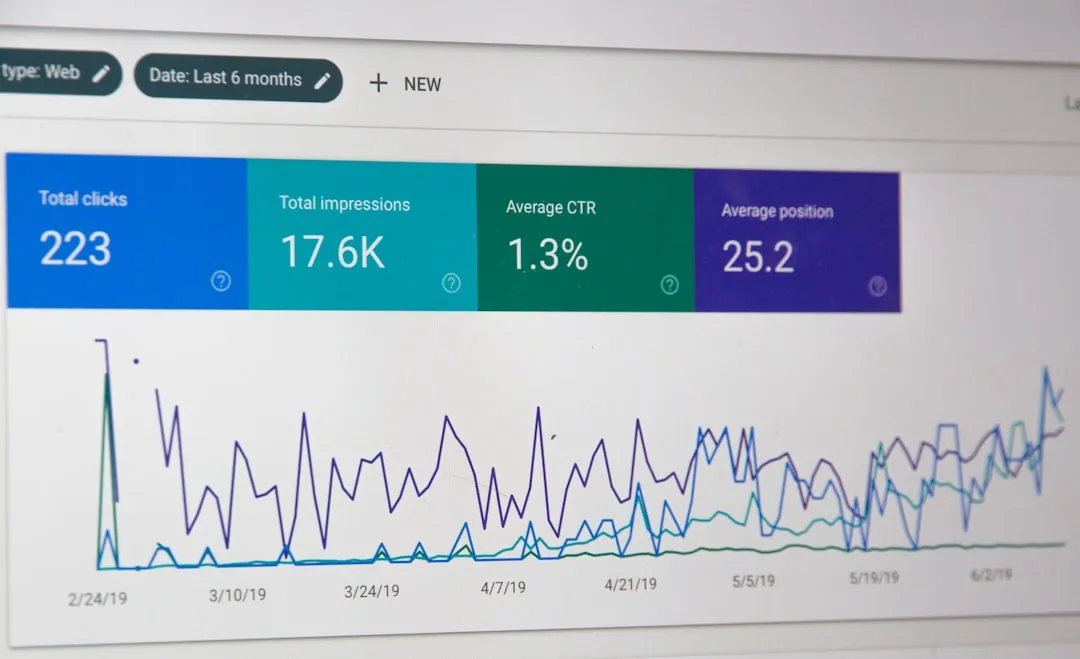
Google has confirmed that HTTPS is a lightweight ranking signal. While it won't shoot you to the top of search results on its own, it can give you a slight edge over non-secure competitors, especially when other factors are equal. More importantly, HTTPS preserves referral data in Google Analytics. When a visitor comes from an HTTPS site to an HTTP site, the referral source can be stripped, showing as "direct" traffic instead of the actual origin. By using HTTPS, you maintain accurate attribution and can better understand where your visitors come from.
HTTPS is also a requirement for modern web features such as HTTP/2, which improves page load times, and service workers, which enable offline functionality and push notifications. Search engines and users both prefer fast, secure sites. If you're running a WordPress site, enabling HTTPS is a straightforward step that can improve both your Core Web Vitals and your credibility. For more on optimizing WordPress hosting, check out WordPress Hosting.
Types of SSL Certificates: Which One Do You Need?
Not all SSL certificates are created equal. They differ in the level of validation and the number of domains they cover. Here's a quick breakdown to help you choose.
Domain Validation (DV) Certificates
DV certificates are the most common and the quickest to obtain. The Certificate Authority only verifies that you control the domain, usually by checking a DNS record or responding to an email. DV certificates are perfect for blogs, portfolios, and small business websites where you just need the padlock and encryption. Many hosting plans, including Shared Hosting (cPanel) at HostPika, include free DV certificates via Let's Encrypt or AutoSSL.
Organization Validation (OV) Certificates
OV certificates require the CA to verify not only the domain but also the organization behind it—its legal name, physical address, and operational existence. This extra step takes longer and costs more, but it adds a layer of trust because the certificate shows the verified company name. OV certificates are often used by businesses, educational institutions, and government agencies.
Extended Validation (EV) Certificates
EV certificates provide the highest level of validation. The CA conducts a thorough review of the organization's legal, physical, and operational identity. In the past, browsers displayed a green bar with the company name for EV certificates, but that visual indicator has been removed in most modern browsers. Still, EV certificates can offer additional assurance for large e-commerce and banking sites, though for most users a DV or OV certificate is sufficient.
Wildcard and Multi-Domain Certificates
If you run multiple subdomains (e.g., blog.example.com, shop.example.com), a wildcard certificate covers *.example.com with a single certificate. If you need to secure several distinct domains, a multi-domain (SAN) certificate can cover them all in one. These options simplify management and are available on many VPS Hosting plans where you may host multiple sites.
How to Enable SSL/HTTPS on Your Hosting Plan
Enabling HTTPS on your website might sound technical, but with modern hosting control panels it's usually a matter of a few clicks. Here's what the process looks like on HostPika plans.
Free SSL via Let's Encrypt or AutoSSL
Most shared hosting plans now include free SSL certificates issued by Let's Encrypt, a widely trusted CA. In cPanel, this is often managed through a feature called AutoSSL, which automatically requests, installs, and renews certificates for your domains. In Plesk, the Let's Encrypt extension does the same. This means you can secure your site at no extra cost and never worry about manually renewing a certificate every 90 days. To see which plans include free SSL, visit Shared Hosting (cPanel) or Web Hosting Plesk.
Installing a Certificate in cPanel or Plesk
If you have purchased a premium certificate from a third-party provider, you can install it in your control panel. In cPanel, navigate to the SSL/TLS section, upload your certificate and private key, and then assign the certificate to your domain. In Plesk, go to Websites & Domains, open the SSL/TLS Certificates menu, and upload or request a certificate. Both interfaces also allow you to force HTTPS redirects so that visitors who type "http://" are automatically sent to the secure version.
Updating Your Site URLs and Forcing HTTPS
After your certificate is active, you need to update your site's configuration. For WordPress, change the WordPress Address and Site Address URLs from http:// to https:// in Settings > General. If you use a caching plugin, clear the cache afterward. You should also set up a 301 redirect from HTTP to HTTPS at the server level or via your CMS. In cPanel and Plesk, this can be done with a simple toggle or by adding a rewrite rule. Finally, update any hardcoded links or resources in your database or theme files to avoid mixed content warnings.
Common SSL/HTTPS Errors and How to Fix Them
Even after enabling HTTPS, you might encounter a few issues. Here are the most common ones and what to do about them.
Mixed Content Warnings
A mixed content warning occurs when a page served over HTTPS loads some resources—images, scripts, stylesheets—over plain HTTP. The browser may block those resources or show a broken padlock. To fix this, you need to update all internal URLs to use https:// or, better, use relative URLs where possible. WordPress users can find and replace http:// with https:// in the database using a plugin like Better Search Replace. Also check your theme and plugin settings for hardcoded HTTP URLs.
Certificate Not Trusted or Name Mismatch
If your certificate is issued for "www.example.com" but your site is accessible via "example.com" without the www, visitors may see a name mismatch error. Make sure your certificate covers both the root domain and any subdomains you use. AutoSSL and Let's Encrypt typically issue certificates that include both, but if you're using a custom certificate, include all necessary domain names as SANs.
Expired Certificate
An expired certificate triggers a full-page security warning that scares visitors away. Free certificates from Let's Encrypt are valid for 90 days, but AutoSSL renews them automatically. If you're using a manually installed certificate, set calendar reminders well before the expiration date and renew it promptly. On HostPika shared plans, AutoSSL handles this for you, so you can focus on your content.
Redirect Loops or Too Many Redirects
Sometimes forcing HTTPS creates a redirect loop: the browser bounces between HTTP and HTTPS endlessly. This is often caused by conflicting rules in .htaccess, a misconfigured CDN, or a WordPress plugin fighting the server-level redirect. To fix it, temporarily disable plugins, check your CDN's SSL settings, and review your .htaccess redirect rules. In cPanel, the "Force HTTPS Redirect" option usually works cleanly, but if you have a VPS, you may need to adjust your Nginx or Apache configuration. For more control over server settings, consider VPS Hosting.
Conclusion: Secure Your Site Today
SSL and HTTPS are no longer optional for a modern website. They protect your visitors' data, build trust, help with SEO, and enable important web features. Whether you're running a personal blog, a business site, or an e-commerce store, the step from HTTP to HTTPS is essential—and it's easier than ever with free certificates and automated renewal. At HostPika, our shared hosting plans include easy SSL management through cPanel or Plesk, so you can secure your site in minutes without touching a command line. Ready to put the padlock in your address bar? Explore Shared Hosting (cPanel) today and see current pricing and features.
If you have questions about which SSL option is right for your project, our support team is here to help. Your visitors deserve a secure experience, and your site deserves the ranking boost.